
Common Issues
Quick fixes for the problems users run into most often. If your issue isn't listed here, use the in-app bug report button or contact us.
Installation issues
1.1 · Windows
“Windows protected your PC” blocks the installer
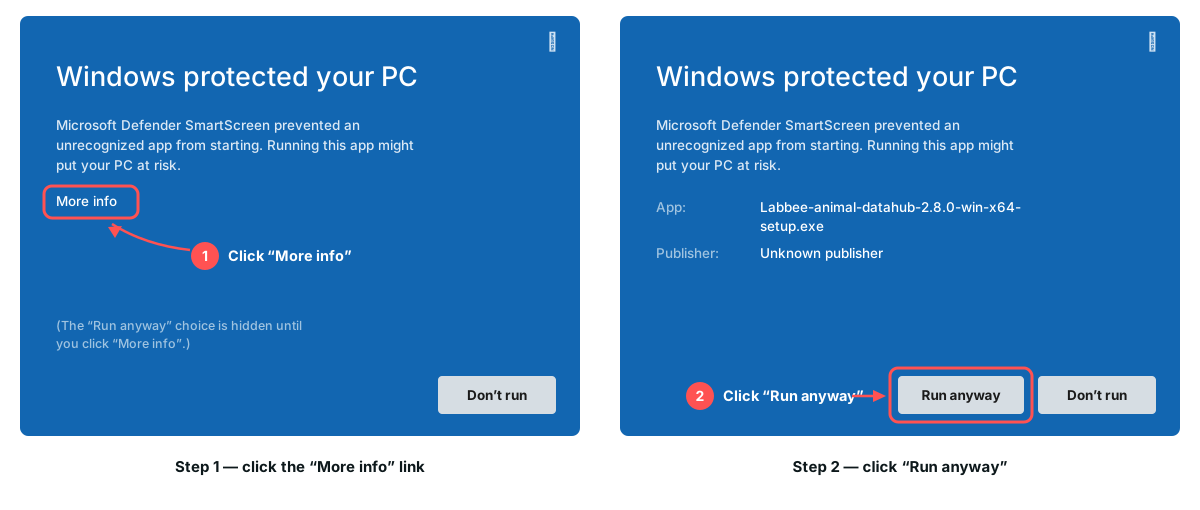
When you run the Windows installer (e.g. Labbee-animal-datahub-2.13.0-win-x64-setup.exe), Microsoft Defender SmartScreen may show a blue screen saying “Windows protected your PC” with an “Unknown publisher” warning. This is expected — the app is safe; Windows just doesn't recognize new publishers yet. Here is how to continue:
- 1
On that blue “Windows protected your PC” screen, click the “More info” link. It's in the body text, just under the “Running this app might put your PC at risk” line — easy to miss because only the “Don't run” button stands out.
- 2
A “Run anyway” button appears next to “Don't run” — click it and the installer proceeds normally.
If “More info” doesn't appear at all (some managed/institutional PCs hide it via policy), the fallback is: right-click the downloaded Labbee-animal-datahub-2.13.0-win-x64-setup.exe → Properties → check “Unblock” at the bottom of the General tab → OK → run again. If the machine is IT-managed and even that is blocked, your IT department has to allow it.
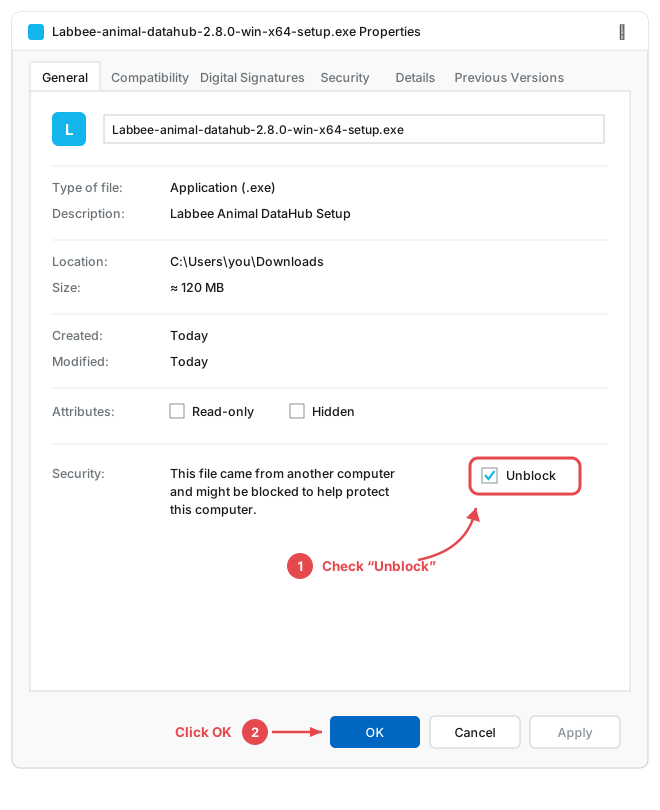
Illustration of the Properties dialog — check Unblock, then click OK.
1.2 · macOS
macOS won't open the app — “blocked to protect your Mac” / “unidentified developer”
Our macOS apps are not yet signed with an Apple Developer ID, so macOS Gatekeeper treats them as coming from an unidentified developer and refuses the very first launch. This applies to both desktop apps — Labbee Animal DataHub and Labbee AI Project. Nothing is wrong with the download; you just have to approve it once:
- 1
Open the downloaded
.dmg, drag the app into your Applications folder, then open it from Applications (not from the disk image). - 2
macOS shows “Labbee AI Project” Not Opened (or “Labbee-animal-datahub”). Never click “Move to Trash” — it deletes the app. Instead click the ? button in the dialog's top-right corner.
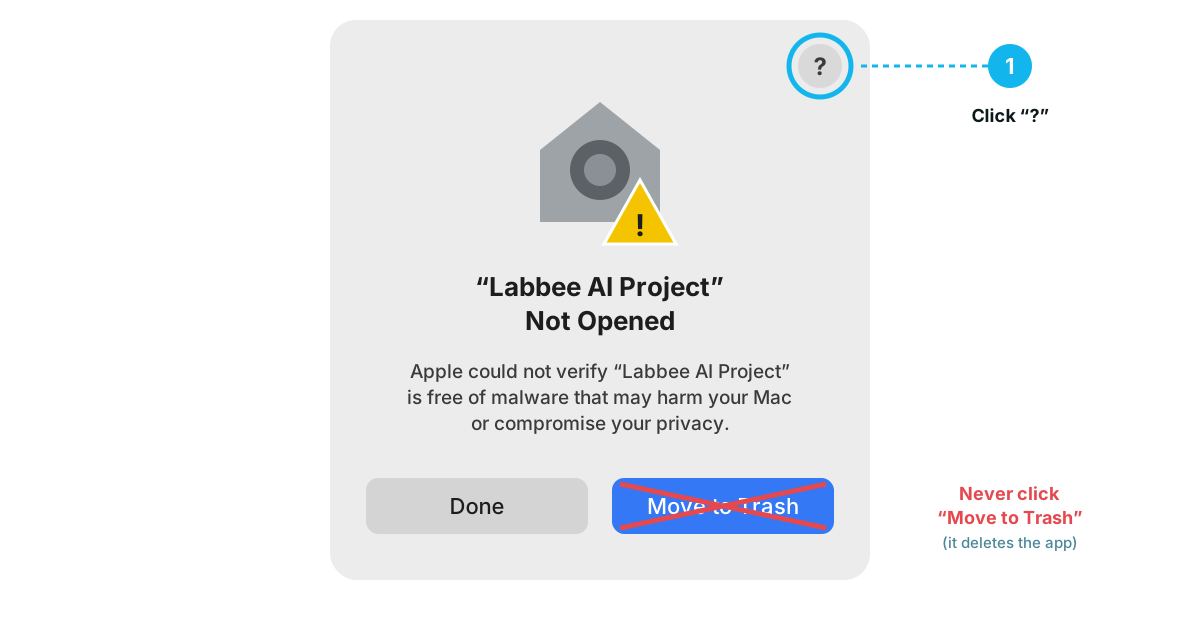
Illustration — click ?, never Move to Trash.
- 3
Apple's help page “Apple can’t check app for malicious software” opens. In its steps, click the link that opens Privacy & Security settings for you. (Or open them yourself: Apple menu → System Settings → Privacy & Security.)
- 4
Scroll down to Security. Next to “Labbee AI Project” was blocked to protect your Mac. click “Open Anyway”, enter your Mac login password (or Touch ID), then click OK — and Open if macOS asks once more. The button is only there for about an hour after you tried to open the app; if it's gone, open the app again first. On a university- or company-managed Mac you may see “This setting has been configured by a profile” above it — that is normal, and Open Anyway still works.
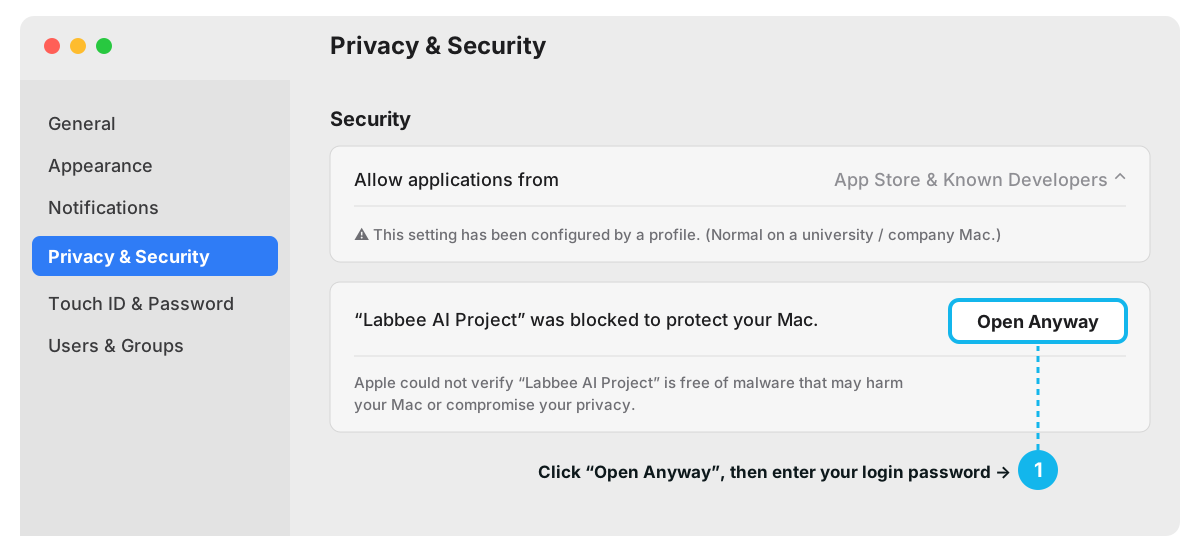
Illustration — System Settings → Privacy & Security → Security: click Open Anyway, then enter your login password.
That's it — macOS remembers the exception, and from now on the app opens normally with a double-click. You only do this once per app (and again after installing a new version).
If none of that works you can clear the download's quarantine flag yourself. Open Terminal and run the line for the app you installed:
xattr -dr com.apple.quarantine "/Applications/Labbee AI Project.app"
xattr -dr com.apple.quarantine "/Applications/Labbee-animal-datahub.app"
Then open the app again. On a university- or company-managed Mac, policy can block all three routes — the right-click, the “Open Anyway” button and the Terminal command — in which case your IT department has to allow the app for you.
Account & email issues
2.1 · Registration / Sign-in
Cannot receive our emails (verification code, password reset)
Our emails come from the labbee.org domain (e.g. info@labbee.org). Mail providers sometimes file messages from a sender they haven't seen before away from the inbox. If the verification or password-reset email hasn't arrived:
- 1
Check your Spam / Junk folder — this is where the email lands most often.
- 2
Also check the Trash folder and — in Gmail — the Promotions and Updates tabs; filters sometimes move the message there automatically.
- 3
When you find it, mark the sender as trusted so the next emails reach your inbox: click “Not spam” (or move it to the Inbox) and add info@labbee.org to your contacts / safe-senders list.
Still nothing? Double-check the email address you typed, wait a couple of minutes, then request a new code from the registration / reset page. On university or company accounts, a quarantine filter may hold the message before it ever reaches your mailbox — ask your IT department to allow emails from labbee.org.